
STILLWATER / FIELD GUIDE
HUSH PC Controls: Crouch, Vault and Interact
Last updated:
Look up the keys for moving through Stillwater’s obstacles, switching equipped weapons, checking the map and handling inventory items.
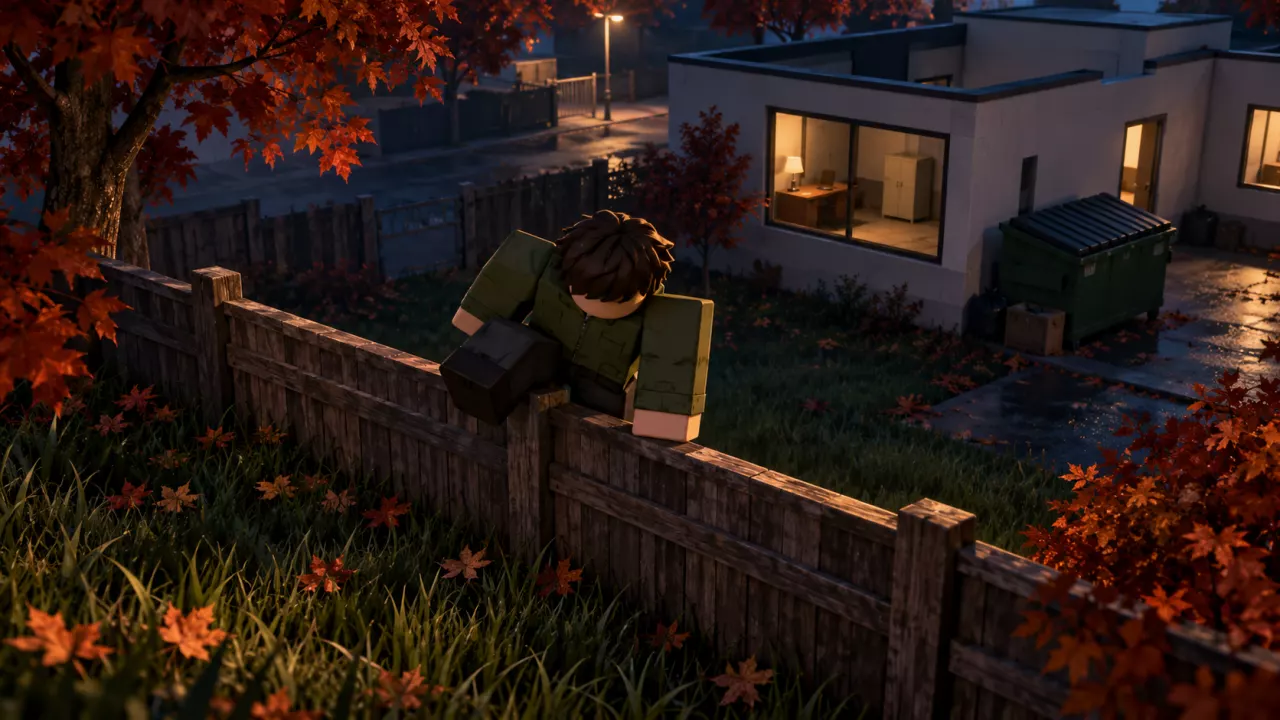
Press C or Control to crouch, F to perform the selected interaction, and 1, 2 or 3 to select your equipped primary, sidearm or melee weapon. At a low fence, press F when VAULT OVER appears and wait for VAULTING to finish. If a door says Doorway blocked, move yourself or your teammate out of the doorway before trying to close it again.
Keyboard Controls at a Glance
| Key | Action | When to use it |
|---|---|---|
| C or Control | Crouch | During a raid |
| F | Perform the selected interaction | When an interaction prompt appears |
| 1 | Select your primary weapon | With a weapon equipped in the primary slot |
| 2 | Select your sidearm | With a weapon equipped in the sidearm slot |
| 3 | Select your melee weapon | With a weapon equipped in the melee slot |
| M | Open the Town Map | During a raid |
| T | Toggle Tasks | While the map is open |
| L | Toggle Labels | While the map is open |
F follows the selected prompt. Read the action beside it before pressing: the same key can search a container, vault a fence or perform a window action.
For navigation and shared markers, see the Stillwater map guide. For searching containers and taking their contents, use the looting guide.
Vault a Low Fence
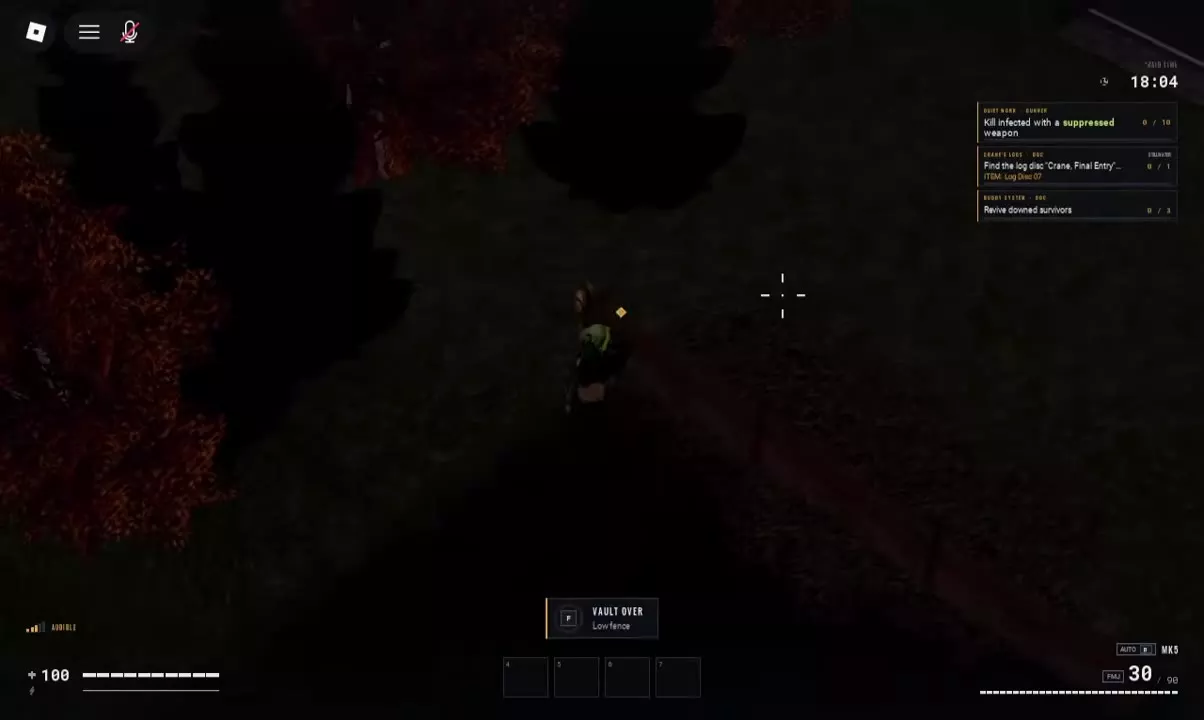
- Approach the Low fence until the F / VAULT OVER prompt appears.
- Press F to start crossing.
- Wait for the VAULTING progress to finish, then continue moving on the other side.
If the prompt has not appeared, move closer to the fence before trying to interact.
Read the Selected Window Action
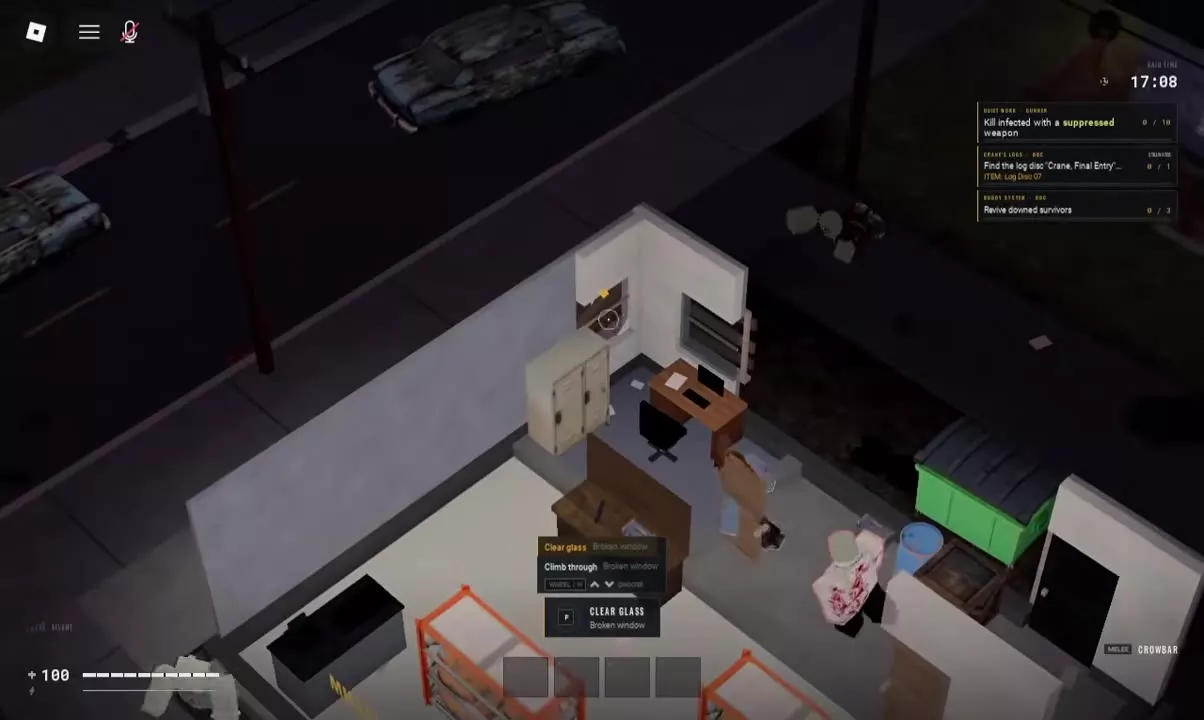
Approach and face the window, then check the available actions. Smash Window, Clear glass and Climb through serve different purposes:
| Selected action | What it is for |
|---|---|
| Smash Window | Breaking the window when the prompt reads F / SMASH Window |
| Clear glass | Clearing glass from a Broken window |
| Climb through | Passing through the window |
Press F when the action you want is selected. If the prompt says CLEAR GLASS, pressing F invokes that action; select Climb through when you want to cross instead.
Nearby doors and containers can add other actions to the interaction list. Check both the selected action and its target before pressing F.
Fix Doorway Blocked
Doorway blocked means someone is standing in the doorway and preventing the door from closing.
- Step clear of the doorway if you are occupying it.
- If a teammate is in the opening, have them move aside.
- Select the close-door action and try again.
When using doors during a chase, clear the opening so your teammate can close it. See the stealth and chase guide for choosing your next move when infected follow you.
Inventory Shortcuts
Use these controls while the inventory or a searched container’s item interface is open:
| Input | Action |
|---|---|
| Drag an item | Place it in a suitable grid area |
| R while dragging | Rotate the item |
| Ctrl-click | Quickly move the item |
| Right-click | Open the item’s available actions |
| Double-click | Equip or use the item |
| Tab | Close the inventory |
Right-click to choose a specific action, such as Use, Inspect, Quick move or Drop. Item menus can also include Mark as needed, Quick slot and, for stacks, Split stack.
For No space, arranging storage grids or finding items left in an old rig after changing equipment, follow the inventory management guide.