
STILLWATER / FIELD GUIDE
HUSH Inventory Management and Storage Calculator
Last updated:
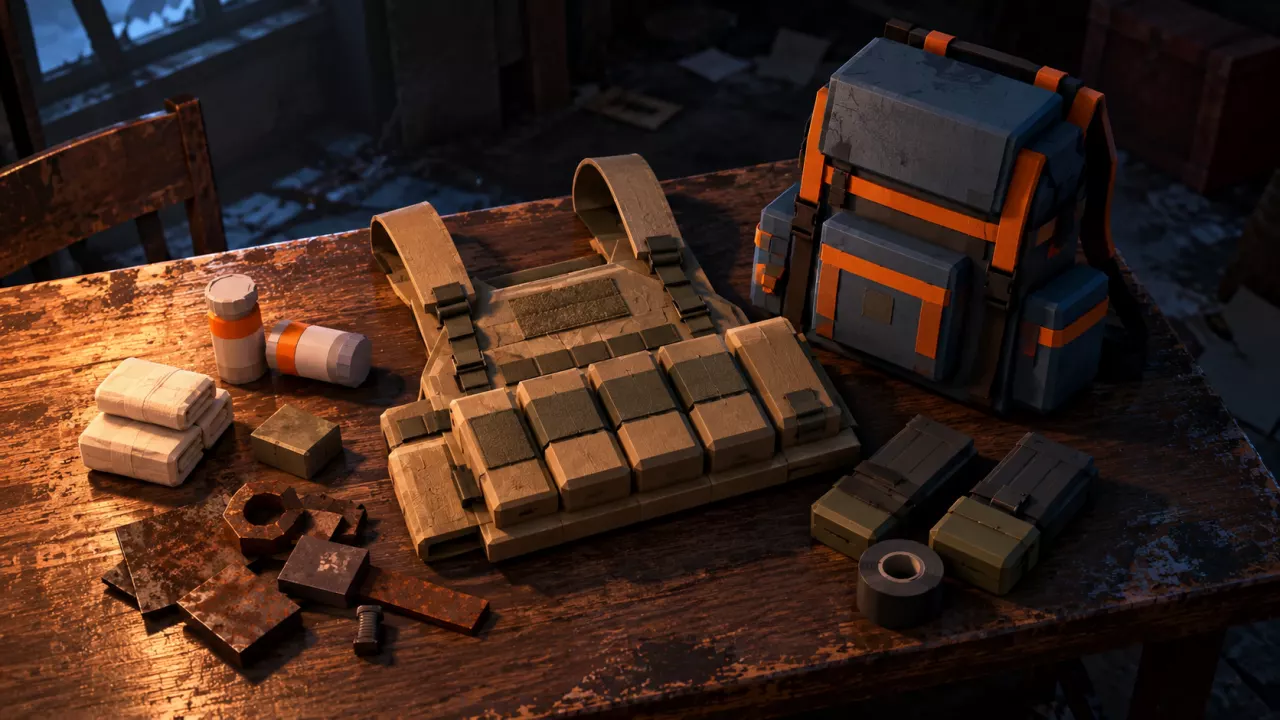
Make room for loot, find items after a rig swap, and work out how much your loadout can carry. HUSH divides your inventory into separate storage grids, so both capacity and item shape matter.
Press R while dragging to rotate an item, Ctrl-click to move it, and double-click to equip or use it. For No space, check the destination grid for a clear area that matches the item's shape. After switching to a smaller rig, check the old rig for anything that did not transfer; re-equipping it restores access. Use the storage calculator to total pocket, backpack and rig cells while keeping secure storage separate.
Total storage cells for known backpack and rig combinations, with separate ordinary and secure storage.
Ordinary cells = pocket cells + backpack cells + rig cells. Total cells = ordinary cells + selected secure-container cells.
- Each storage area remains a separate grid.
- A total cell count does not guarantee that a particular item shape fits.
- Container capacity is different from the space occupied by the container as an item.
- Enter the pocket cells shown in your inventory.
Storage Areas and Equipment Slots
Your carried inventory has four storage areas:
- Pockets: four cells of starting storage.
- Rig: storage supplied by your equipped rig.
- Backpack: storage supplied by your equipped backpack.
- Secure Pouch: protected storage; items inside come home even if you die in the raid.
Stash is your separate storage between raids. It does not add cells to your carried inventory.
The equipment panel has slots for Primary, Sidearm, Melee, Headwear, Body Armor, Backpack, Legs, Boots, Secure and Headset. These slots equip gear; the grids beside them hold items. For example, Rifleman Rig equips in Body Armor, while its contents appear in the Rifleman Rig storage grid. The standard pouch equips in Secure, where its equipment label is SECURE 2, and opens a Secure Pouch grid.
For the full rules on what survives a failed raid, see death penalties and secure storage.
Move, Rotate, Equip and Use Items
Open your inventory or a searched container's item interface, then use these controls:
| Action | Control |
|---|---|
| Place an item | Drag it into a suitable empty area |
| Rotate an item | Press R while dragging |
| Quick move | Ctrl-click the item |
| Equip or use | Double-click the item |
| Open item actions | Right-click the item |
| Close the inventory | Press Tab |
Use dragging when you need to choose the exact position or orientation. When equipping gear, drop it into the matching equipment slot.
Split stacks and access quick-slot options
Right-click the item to see its available actions. The Pills menu includes Use, Inspect, Mark as needed, Quick move, Quick slot and Drop. A stack of two Pills also offers Split stack. Choose Split stack to access splitting, or Quick slot to access the item's quick-slot option. To consume a usable item from the menu, select Use.
When collecting loot, the NEARBY area lists reachable containers. For finding and searching those containers, follow the looting guide.
Fix No Space
Check the grid you are moving into, not just the total number of empty cells across your loadout. An item needs a continuous empty area matching its footprint; scattered cells or space in another container cannot complete that area.
- Check the item's dimensions and destination. Identify which storage grid you are trying to use and whether it has enough cells.
- Rotate the item. Hold it with the mouse and press R to try the other orientation.
- Rearrange nearby items. Move smaller items aside to create a continuous opening. Rotation helps with shape, but it does not reduce the number of cells required.
- Try another suitable storage area. If the target grid is too full or too narrow, move the item—or some of the existing contents—to another carried grid with room.
A container's stored item size and internal capacity are different measurements. Duffel Bag occupies 4×2 cells as an item but provides a 6×3 internal grid with 18 cells. Use the internal grid when judging what the equipped bag can hold; use its item footprint when placing the bag itself into storage.
If the problem started immediately after changing rigs, follow the old-rig recovery steps.
Recover Items Left in an Old Rig
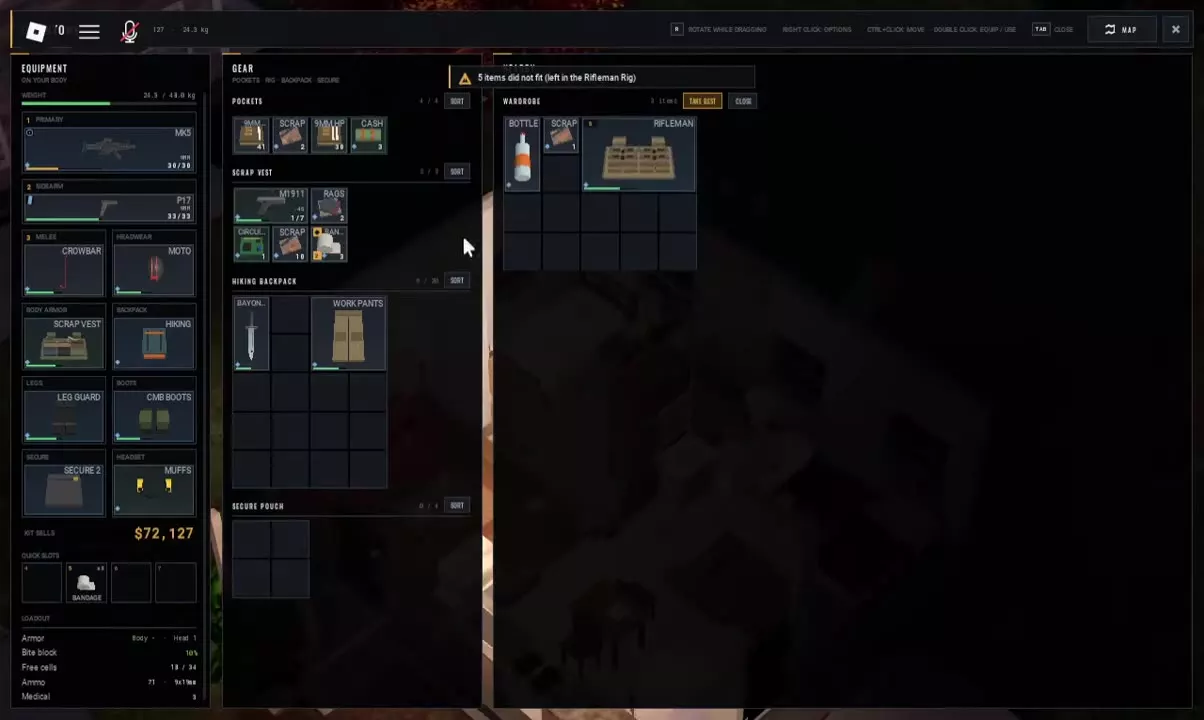
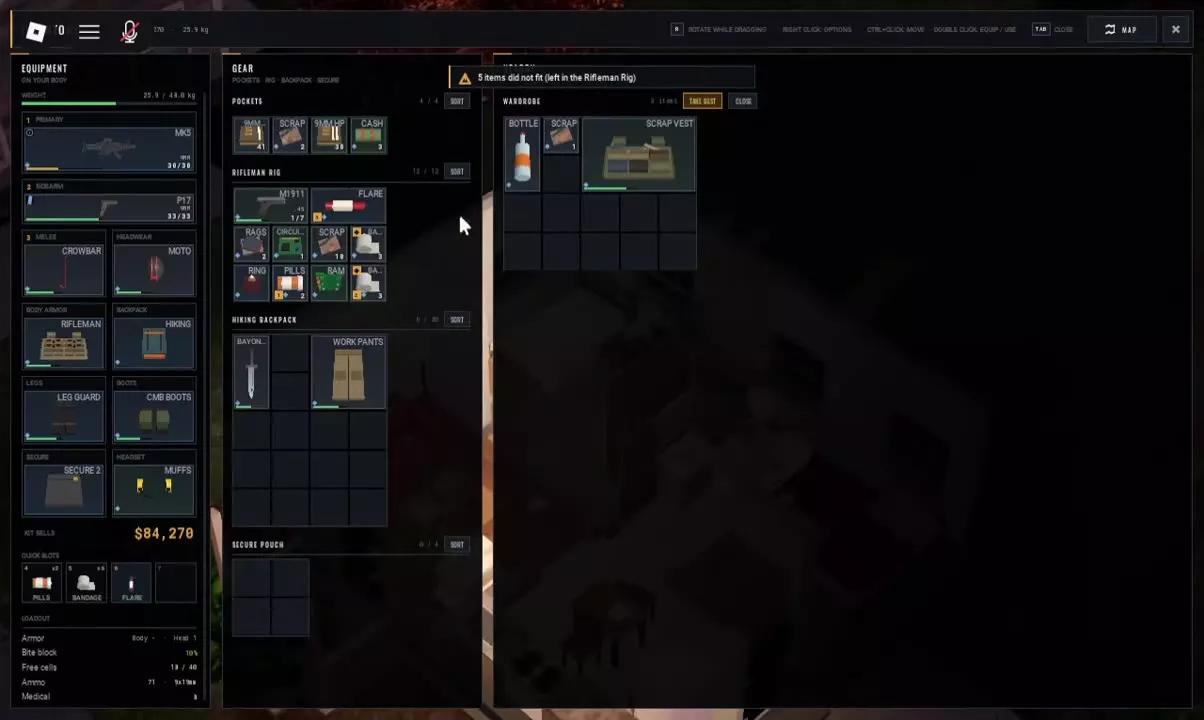
Items that do not fit in a replacement rig can remain inside the old rig. Switching from Rifleman Rig to Scrap Vest reduces the rig grid from 4×3 (12 cells) to 3×2 (6 cells). Some contents can transfer while the rest stay behind.
If you replaced Rifleman Rig with Scrap Vest from a Wardrobe:
- Read the overflow message. It identifies the rig holding the items that did not fit. A message such as “5 items did not fit (left in the Rifleman Rig)” gives the count for that swap.
- Check the Wardrobe for the old Rifleman Rig. Look in the container involved in the swap before leaving the area.
- Re-equip Rifleman Rig in Body Armor. Its larger storage grid and retained contents become accessible again; Scrap Vest returns to the Wardrobe.
- Check your quick slots. Their order can change after swapping equipment. Confirm which items are assigned before relying on a familiar key.
If you still want to use the smaller vest, move the items you need into other suitable storage first, then check that everything you intend to carry is accessible after the swap. Keeping Rifleman Rig is the simpler storage choice when your loot already exceeds the vest's capacity. See armor and rig choices for the wider equipment comparison.
Calculate Your Loadout's Storage Cells
Use the calculator to compare carried capacity before changing equipment:
- Choose your backpack: Duffel Bag or Hiking Backpack.
- Choose your rig: Rifleman Rig or Scrap Vest.
- Enter the pocket cells shown in your inventory. The default is four.
- Choose your secure container: the standard Secure Pouch or the paid Secure Case 3x4.
Read Ordinary storage as the combined pocket, backpack and rig capacity. Secure storage counts the selected protected container, and Total storage combines both. These are capacity totals, not a count of currently empty cells. Stash space is excluded.
Use the result to judge how much room a swap adds or removes, then check the actual grid shapes using the No space steps. A higher total does not mean every item will fit.
For purchase decisions, compare backpack sizes and prices. If protected capacity is your priority, review the Secure Case 3x4 benefit and other game passes.